Support &
Setup cards and full user manuals for Viper Dynamics products. Open a PDF in the browser or download it for offline use.
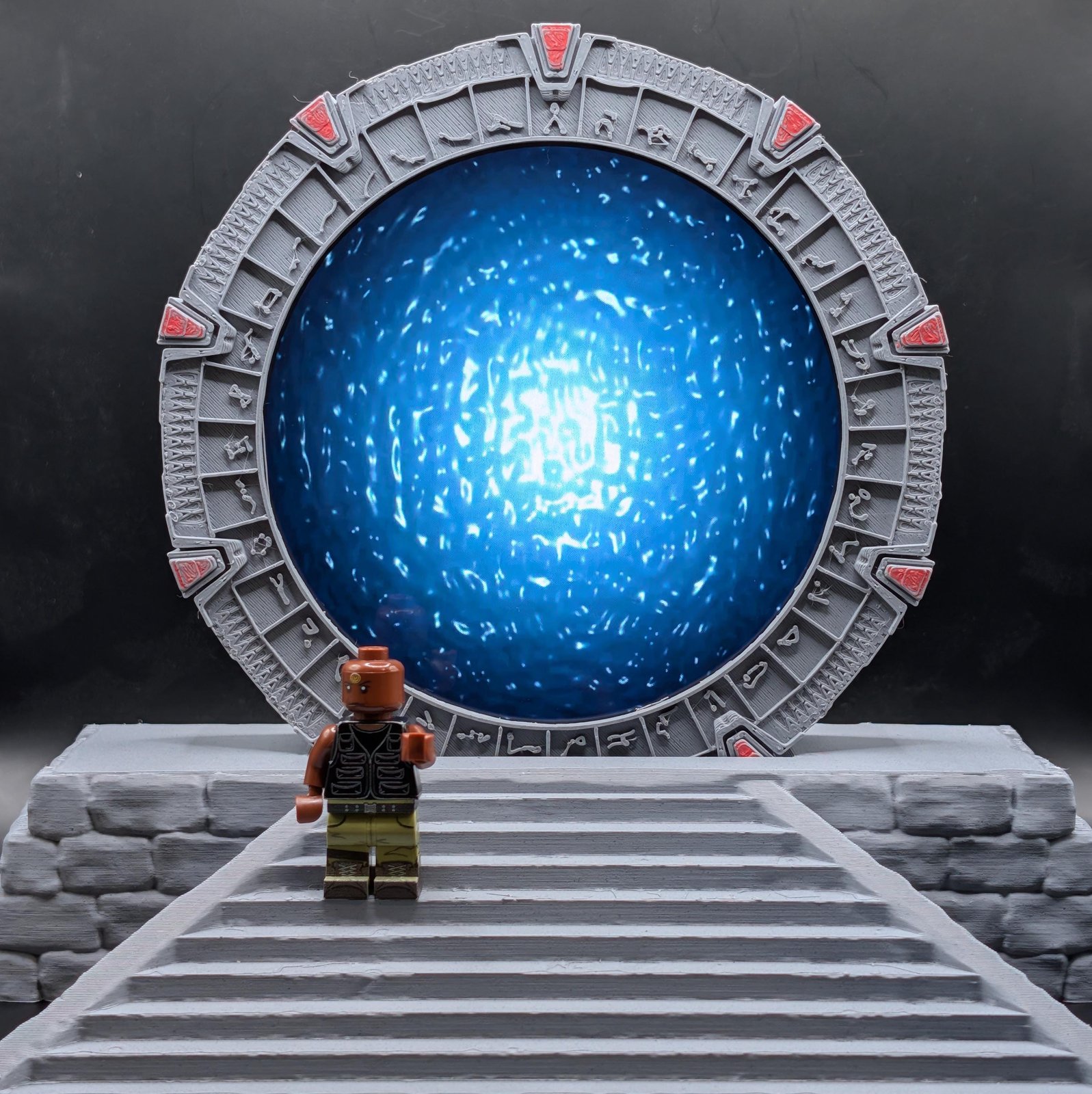 P4X Stargate
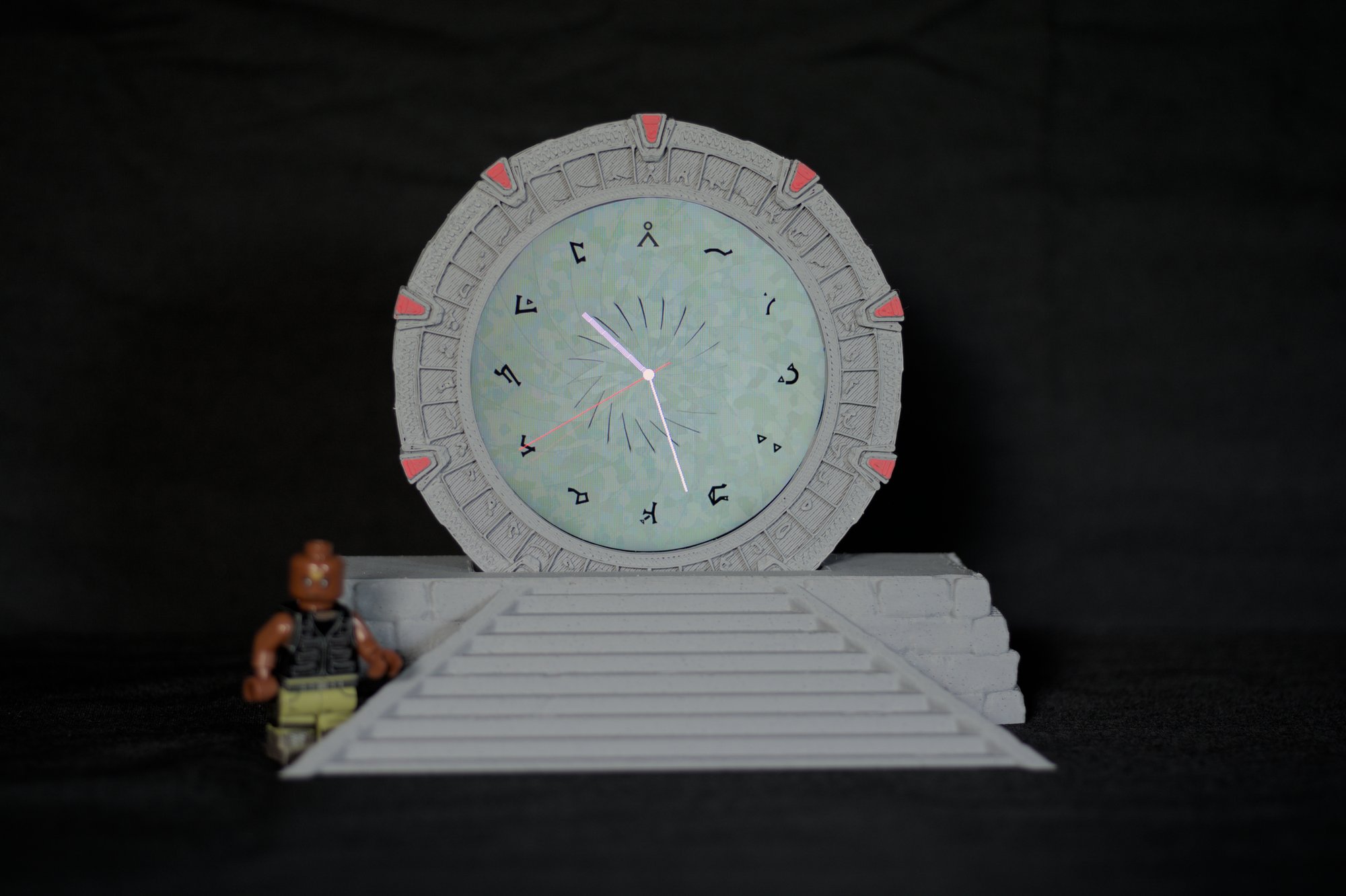 P3M Stargate
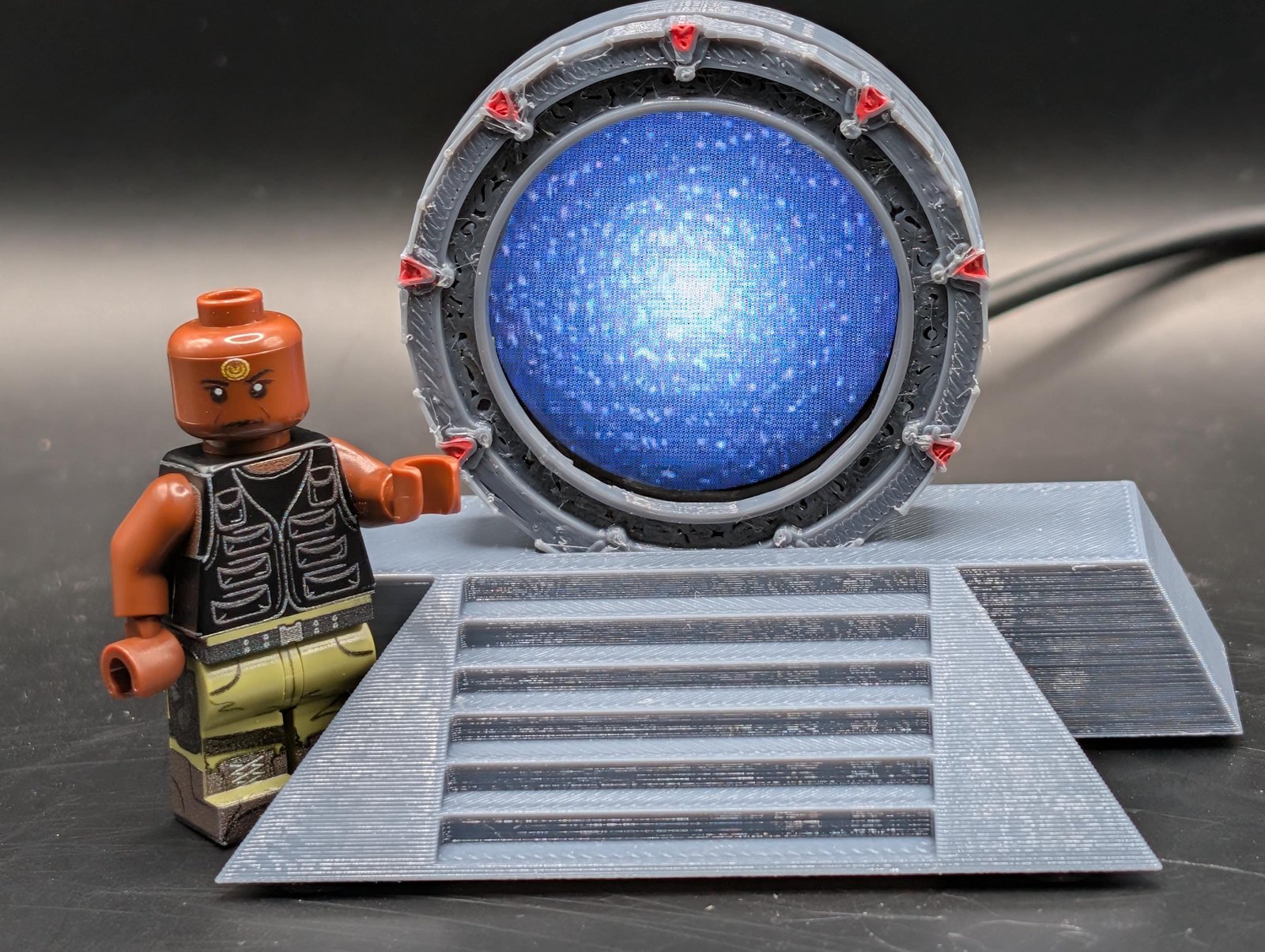 Stargate P1S
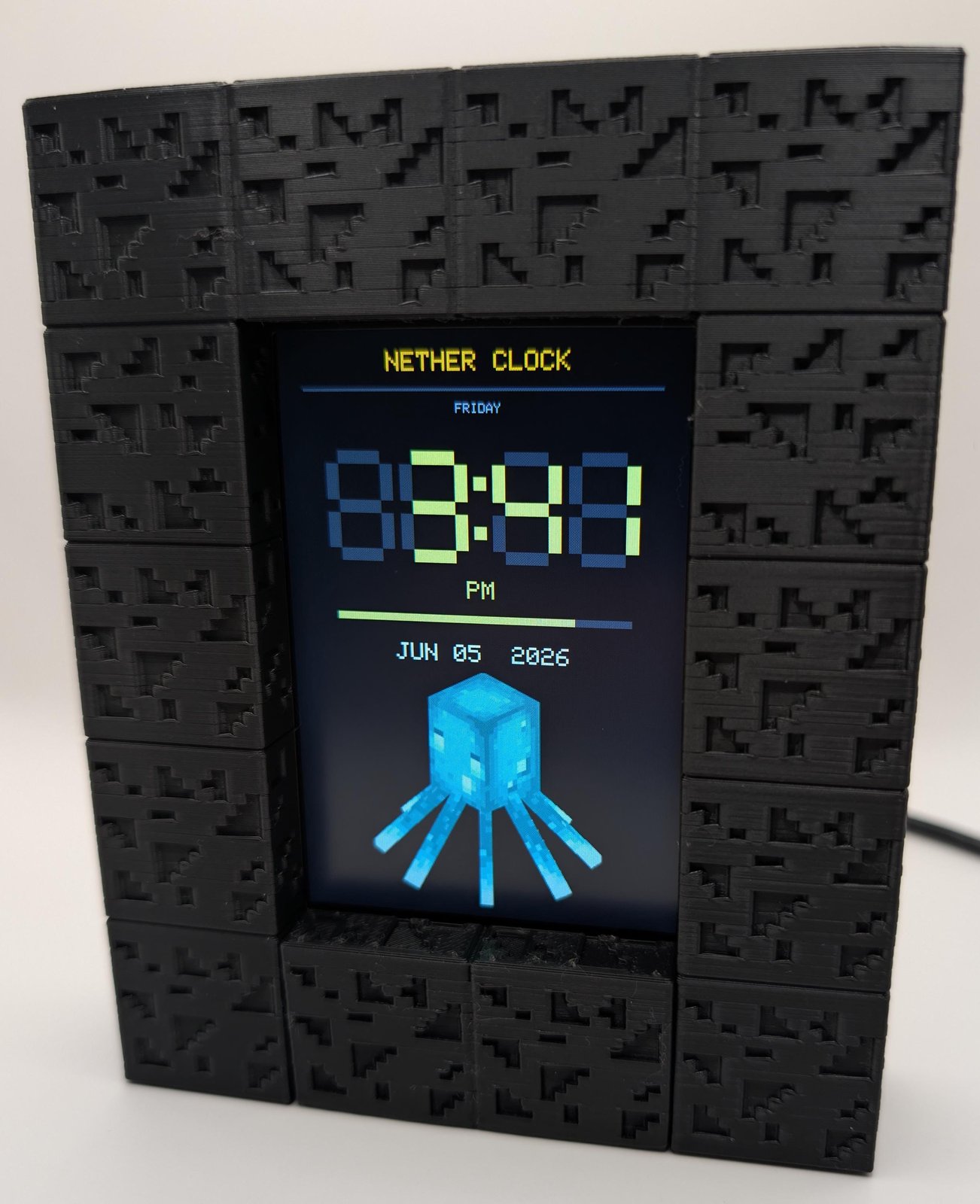 Nether Portal Display
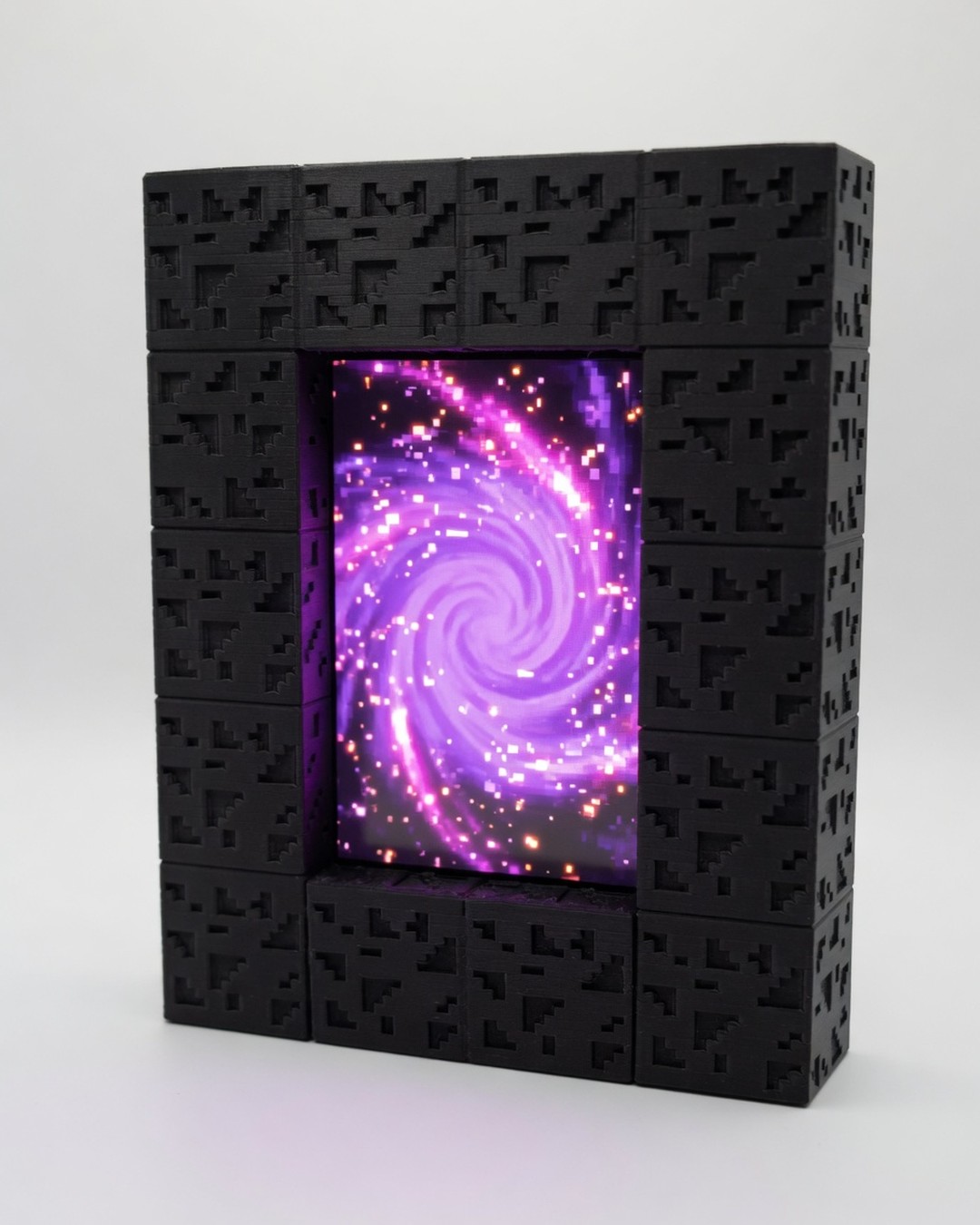 Nether Portal 7 Pro
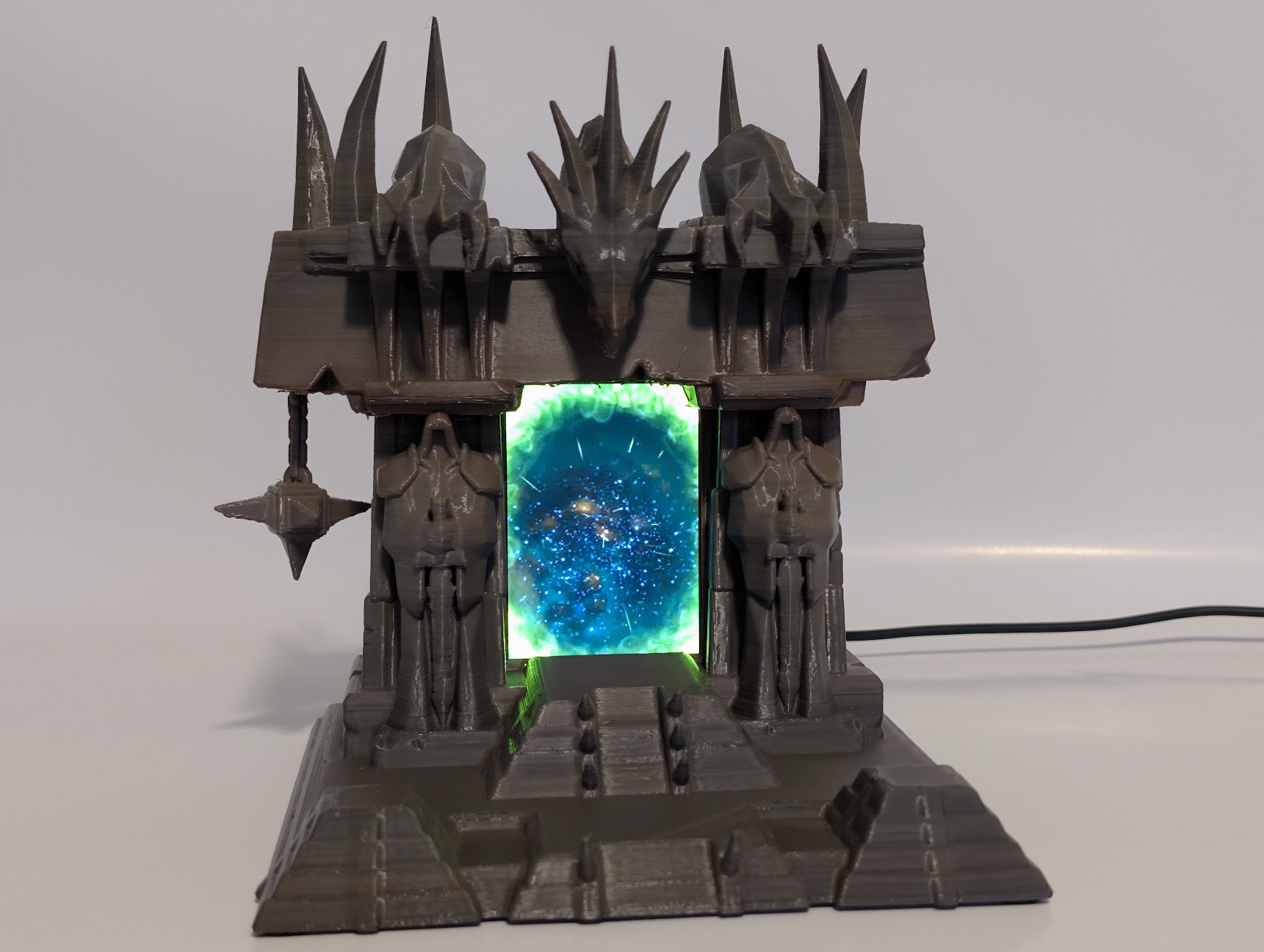 The Dark Portal Display
First-time Wi‑Fi setup
The P4X, P3M, Stargate P1S, Nether Portal, and Dark Portal all set up over Wi‑Fi the same way. Exact hotspot names and extra features are in each product’s quick start. WLED signs (ENCOM, custom LED signs, crystal bases, snail light) use the WLED app and the WLED-AP hotspot — that card is in the list above. If the phone will not stay on the setup hotspot, Stargate P1S, Nether Portal, and Dark Portal can use USB hard settings on a computer. The P4X USB-C port is power only.
Power on
Plug in any 5V USB-C charger. The boot screen appears, then setup if Wi‑Fi isn’t saved yet.
Join setup Wi‑Fi
Connect to the open hotspot on the device (no password). Stay connected if your phone warns about no internet.
Open the config page
In a browser go to http://192.168.4.1 and enter your home Wi‑Fi.
2.4 GHz only
5 GHz-only networks will not join. Use a 2.4 GHz SSID, or the 2.4 GHz side of a dual-band router.
Rejoin home Wi‑Fi
After save, the setup hotspot disappears. Open the hostname shown in the config header (e.g. …-xxx.local).
Use the full manual
Modes, photos, clocks, and troubleshooting are in the user manual for your device — download it above.